> ## Documentation Index
> Fetch the complete documentation index at: https://docs.flipsidecrypto.com/llms.txt
> Use this file to discover all available pages before exploring further.
# Mounting Shares
> Add Flipside data shares to your Snowflake account and start querying
Once you have access to a Flipside data share (free or premium), you'll need to "mount" it by
creating a database from the share.
## Prerequisites
Before mounting a share:
✅ Snowflake account in AWS US-EAST-1
✅ Enterprise Edition or higher
✅ Access to the
share (via Marketplace or approval)
✅ ACCOUNTADMIN or CREATE DATABASE privileges
## Finding your share
Log in to your Snowflake account (web UI or SnowSQL)
Click **Data** in the left sidebar, then select the **Private Sharing** tab
Look for shares from **Flipside Crypto**
You should see one or more shares listed, such as:
* `Ethereum Onchain Core Data` (free)
* `Ethereum Premium Onchain Data` (premium)
* `Solana Onchain Core Data` (free)
* Etc.
## Mounting the share
1. Click on the Flipside share you want to mount
2. You'll see share details and available schemas
1. Click **Get**
2. You'll see a dialog to configure the database
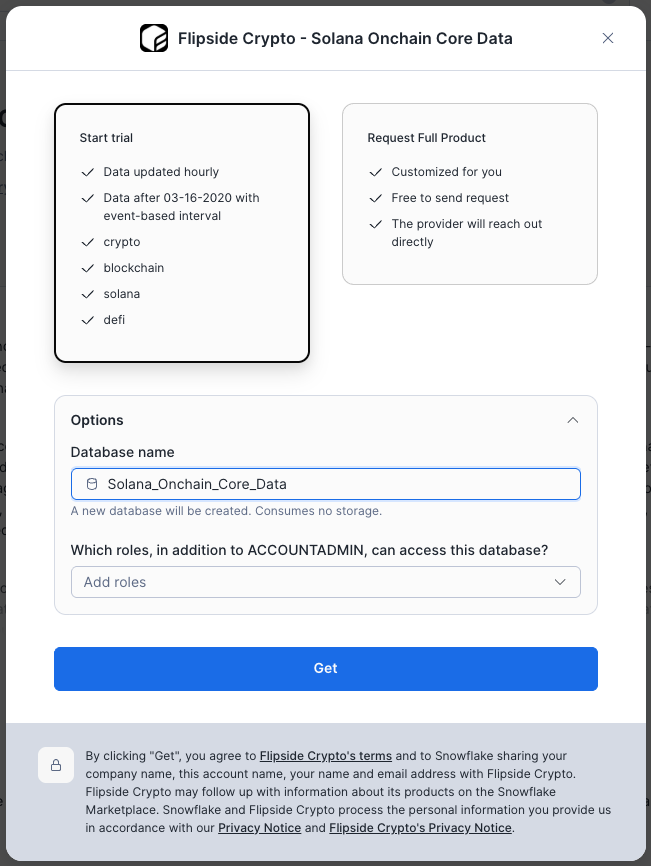 Choose a database name:
**Option 1: Use the default name** (recommended)
* Usually `[BLOCKCHAIN]_ONCHAIN_CORE_DATA` or `[BLOCKCHAIN]`
* Example: `SOLANA_ONCHAIN_CORE_DATA`, `SOLANA`
**Option 2: Choose a custom name**
* Use lowercase and underscores
* Make it descriptive
* Example: `flipside_ethereum`, `fs_solana_full`
Use the default name for easier reference to documentation and examples.
1. Click **Get**
2. Wait for confirmation (usually instant)
3. The database will appear in your database list
## Verifying the mount
After mounting, verify the share is accessible:
```sql theme={null}
-- Switch to the new database
USE DATABASE SOLANA_ONCHAIN_CORE_DATA;
-- List available schemas
SHOW SCHEMAS;
-- Expected output (for core shares):
-- CORE
-- INFORMATION_SCHEMA
-- Expected output (for premium shares):
-- CORE
-- DEFI
-- NFT
-- PRICE
-- STATS
-- INFORMATION_SCHEMA
-- Query a sample table
SELECT *
FROM solana_onchain_core_data.core.fact_blocks
ORDER BY block_id DESC
LIMIT 5;
```
If queries run successfully, your share is mounted correctly!
## Managing multiple shares
You can mount shares for multiple blockchains:
```sql theme={null}
-- List all databases
SHOW DATABASES;
-- You might see:
-- ETHEREUM
-- SOLANA_ONCHAIN_CORE_DATA
-- ARBITRUM
-- Etc.
-- Query across multiple chains
SELECT 'Ethereum' AS chain, COUNT(*) AS block_count
FROM ETHEREUM_ONCHAIN_CORE_DATA.core.fact_blocks
WHERE block_timestamp >= CURRENT_DATE - 1
UNION ALL
SELECT 'Solana' AS chain, COUNT(*) AS block_count
FROM SOLANA_ONCHAIN_CORE_DATA.core.fact_blocks
WHERE block_timestamp >= CURRENT_DATE - 1;
```
## Granting access to other users
If you want other users in your Snowflake account to access the shared database:
```sql theme={null}
-- Grant usage on the database
GRANT USAGE ON DATABASE ETHEREUM_ONCHAIN_CORE_DATA TO ROLE analyst_role;
-- Grant usage on all schemas
GRANT USAGE ON ALL SCHEMAS IN DATABASE ETHEREUM_ONCHAIN_CORE_DATA TO ROLE analyst_role;
-- Grant select on all tables
GRANT SELECT ON ALL TABLES IN SCHEMA ETHEREUM_ONCHAIN_CORE_DATA.core TO ROLE analyst_role;
GRANT SELECT ON ALL TABLES IN SCHEMA ETHEREUM_ONCHAIN_CORE_DATA.defi TO ROLE analyst_role;
-- Repeat for other schemas as needed
```
## Unmounting a share
If you need to remove a mounted share:
```sql theme={null}
-- Drop the database
DROP DATABASE IF EXISTS ETHEREUM_ONCHAIN_CORE_DATA;
```
This only removes the database from your account—it doesn't affect the underlying share. You can
re-mount it anytime by following the mounting steps again.
## Common issues
**Possible causes:**
* Premium share request not yet approved
* Wrong Snowflake account (check you're using the AWS US-EAST-1 account)
* Share not yet granted by Flipside
**Solution:**
* For core shares: Contact [data-shares@flipsidecrypto.com](mailto:data-shares@flipsidecrypto.com) to verify your request
* For premium shares: Wait for approval email or contact [data-shares@flipsidecrypto.com](mailto:data-shares@flipsidecrypto.com)
**Error:** `Insufficient privileges to operate on database`
**Solution:**
You need ACCOUNTADMIN or CREATE DATABASE privilege
```sql theme={null}
-- As ACCOUNTADMIN, grant privileges
GRANT CREATE DATABASE ON ACCOUNT TO ROLE your_role;
```
**Error:** `Object does not exist` or `SQL access control error`
**Possible causes:**
* Database not properly mounted
* Missing USAGE grants
* Incorrect schema/table name
**Solution:**
```sql theme={null}
-- Verify database exists
SHOW DATABASES LIKE 'ETHEREUM%';
-- Verify schemas
USE DATABASE ETHEREUM_ONCHAIN_CORE_DATA;
SHOW SCHEMAS;
-- Grant yourself usage
GRANT USAGE ON DATABASE ETHEREUM_ONCHAIN_CORE_DATA TO ROLE your_role;
```
**Issue:** Data hasn't updated recently
**Check data freshness:**
```sql theme={null}
SELECT MAX(block_timestamp) AS latest_block
FROM ethereum_onchain_core_data.core.fact_blocks;
```
See [Data Freshness](/snowflake-data-shares/data-freshness) for expected latencies.
If data is significantly stale, contact [data-shares@flipsidecrypto.com](mailto:data-shares@flipsidecrypto.com)
## Next steps
Write efficient queries for better performance
Example queries and common patterns
Understand update schedules and latency
Explore table structures and schemas
Choose a database name:
**Option 1: Use the default name** (recommended)
* Usually `[BLOCKCHAIN]_ONCHAIN_CORE_DATA` or `[BLOCKCHAIN]`
* Example: `SOLANA_ONCHAIN_CORE_DATA`, `SOLANA`
**Option 2: Choose a custom name**
* Use lowercase and underscores
* Make it descriptive
* Example: `flipside_ethereum`, `fs_solana_full`
Use the default name for easier reference to documentation and examples.
1. Click **Get**
2. Wait for confirmation (usually instant)
3. The database will appear in your database list
## Verifying the mount
After mounting, verify the share is accessible:
```sql theme={null}
-- Switch to the new database
USE DATABASE SOLANA_ONCHAIN_CORE_DATA;
-- List available schemas
SHOW SCHEMAS;
-- Expected output (for core shares):
-- CORE
-- INFORMATION_SCHEMA
-- Expected output (for premium shares):
-- CORE
-- DEFI
-- NFT
-- PRICE
-- STATS
-- INFORMATION_SCHEMA
-- Query a sample table
SELECT *
FROM solana_onchain_core_data.core.fact_blocks
ORDER BY block_id DESC
LIMIT 5;
```
If queries run successfully, your share is mounted correctly!
## Managing multiple shares
You can mount shares for multiple blockchains:
```sql theme={null}
-- List all databases
SHOW DATABASES;
-- You might see:
-- ETHEREUM
-- SOLANA_ONCHAIN_CORE_DATA
-- ARBITRUM
-- Etc.
-- Query across multiple chains
SELECT 'Ethereum' AS chain, COUNT(*) AS block_count
FROM ETHEREUM_ONCHAIN_CORE_DATA.core.fact_blocks
WHERE block_timestamp >= CURRENT_DATE - 1
UNION ALL
SELECT 'Solana' AS chain, COUNT(*) AS block_count
FROM SOLANA_ONCHAIN_CORE_DATA.core.fact_blocks
WHERE block_timestamp >= CURRENT_DATE - 1;
```
## Granting access to other users
If you want other users in your Snowflake account to access the shared database:
```sql theme={null}
-- Grant usage on the database
GRANT USAGE ON DATABASE ETHEREUM_ONCHAIN_CORE_DATA TO ROLE analyst_role;
-- Grant usage on all schemas
GRANT USAGE ON ALL SCHEMAS IN DATABASE ETHEREUM_ONCHAIN_CORE_DATA TO ROLE analyst_role;
-- Grant select on all tables
GRANT SELECT ON ALL TABLES IN SCHEMA ETHEREUM_ONCHAIN_CORE_DATA.core TO ROLE analyst_role;
GRANT SELECT ON ALL TABLES IN SCHEMA ETHEREUM_ONCHAIN_CORE_DATA.defi TO ROLE analyst_role;
-- Repeat for other schemas as needed
```
## Unmounting a share
If you need to remove a mounted share:
```sql theme={null}
-- Drop the database
DROP DATABASE IF EXISTS ETHEREUM_ONCHAIN_CORE_DATA;
```
This only removes the database from your account—it doesn't affect the underlying share. You can
re-mount it anytime by following the mounting steps again.
## Common issues
**Possible causes:**
* Premium share request not yet approved
* Wrong Snowflake account (check you're using the AWS US-EAST-1 account)
* Share not yet granted by Flipside
**Solution:**
* For core shares: Contact [data-shares@flipsidecrypto.com](mailto:data-shares@flipsidecrypto.com) to verify your request
* For premium shares: Wait for approval email or contact [data-shares@flipsidecrypto.com](mailto:data-shares@flipsidecrypto.com)
**Error:** `Insufficient privileges to operate on database`
**Solution:**
You need ACCOUNTADMIN or CREATE DATABASE privilege
```sql theme={null}
-- As ACCOUNTADMIN, grant privileges
GRANT CREATE DATABASE ON ACCOUNT TO ROLE your_role;
```
**Error:** `Object does not exist` or `SQL access control error`
**Possible causes:**
* Database not properly mounted
* Missing USAGE grants
* Incorrect schema/table name
**Solution:**
```sql theme={null}
-- Verify database exists
SHOW DATABASES LIKE 'ETHEREUM%';
-- Verify schemas
USE DATABASE ETHEREUM_ONCHAIN_CORE_DATA;
SHOW SCHEMAS;
-- Grant yourself usage
GRANT USAGE ON DATABASE ETHEREUM_ONCHAIN_CORE_DATA TO ROLE your_role;
```
**Issue:** Data hasn't updated recently
**Check data freshness:**
```sql theme={null}
SELECT MAX(block_timestamp) AS latest_block
FROM ethereum_onchain_core_data.core.fact_blocks;
```
See [Data Freshness](/snowflake-data-shares/data-freshness) for expected latencies.
If data is significantly stale, contact [data-shares@flipsidecrypto.com](mailto:data-shares@flipsidecrypto.com)
## Next steps
Write efficient queries for better performance
Example queries and common patterns
Understand update schedules and latency
Explore table structures and schemas